
A multiple-tax spreadsheet formula reverses tax by applying the correct combined or sequential multiplier to each taxable group. Excel and Google Sheets can handle additive taxes with one combined rate, but stacked taxes may need formulas that multiply each tax layer in order. The formula must respect separate tax bases, exempt lines, discounts, shipping, local rates, and rounding so the sheet matches the receipt. Each row should preserve the tax logic.
This page explains the spreadsheet formulas, when rates can be combined, when they cannot, how to model GST plus PST, GST plus QST, local sales tax, VAT groups, and how to add QA checks that catch wrong assumptions.
What Is a Multiple Tax Formula?
A multiple tax formula calculates a total or reverse tax result when more than one tax applies. In reverse tax, the formula is used to remove included taxes from a total that may contain two or more tax components.
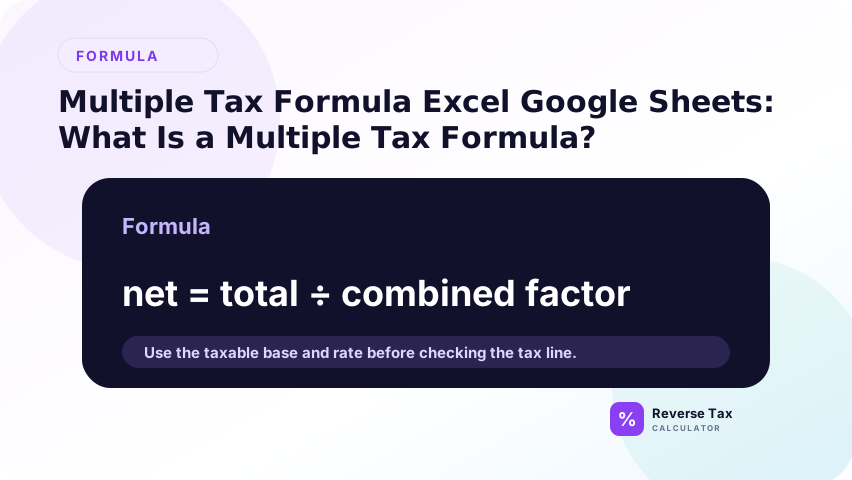
The central question is whether the tax components share the same taxable base. If they do, the rates may be additive. If they do not, the spreadsheet needs separate groups or a stacked formula.
What Is the Additive Multiple Tax Formula?
When taxes are additive and share the same base:
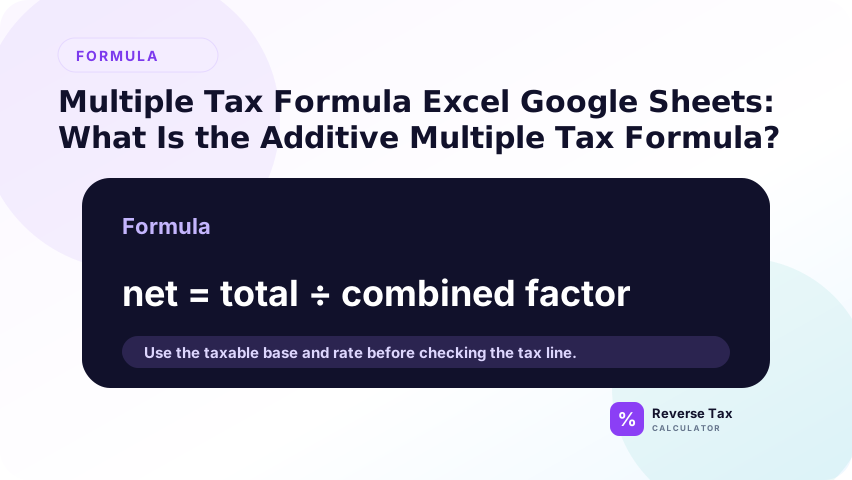
Before-tax amount = Total / (1 + Rate1 + Rate2 + Rate3)
Example: if GST is 5% and PST is 7% on the same base, the combined rate is 12%. A $112.00 total divided by 1.12 gives $100.00 before tax.
The key phrase is “same base.” If both rates are calculated from the same before-tax amount, adding the rates is a valid spreadsheet shortcut. If the bases differ, the shortcut can create a clean but incorrect result.
What Is the Stacked Multiple Tax Formula?
Stacked taxes apply in sequence rather than all on the same base. A simple stacked multiplier can look like:
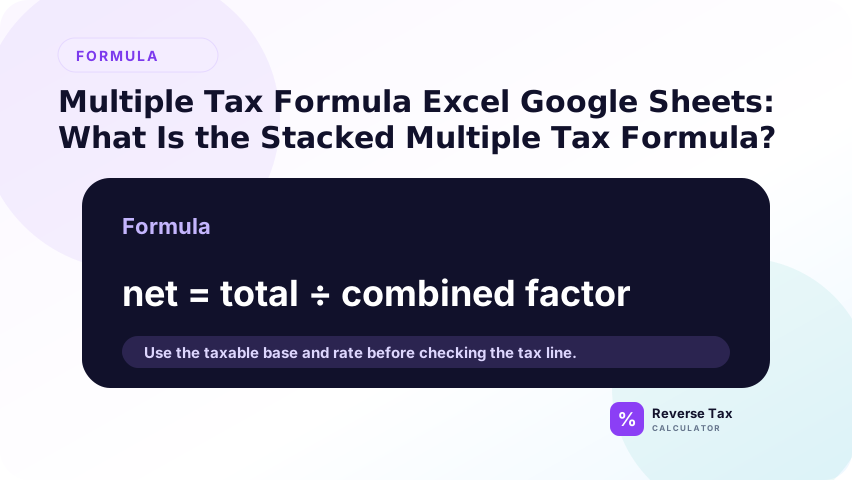
Total = Base * (1 + Rate1) * (1 + Rate2)
Reverse:
Base = Total / ((1 + Rate1) * (1 + Rate2))
Use stacked formulas only when the tax system or source document supports a stacked structure.
The stacked formula should not be used merely because there are multiple taxes. It should be used only when the calculation sequence shows that one tax factor is applied after another. The source method controls the formula.
Why Additive and Stacked Taxes Must Be Separated
Adding rates together when taxes are stacked can produce the wrong base. Treating additive taxes as stacked can also create errors. The difference may be small on one receipt but meaningful in batch spreadsheets.
The comparison page on additive vs stacked taxes explains the conceptual difference, while this page focuses on spreadsheet implementation.
This separation is also useful for QA. A row labeled additive should use a summed-rate divisor. A row labeled stacked should use a multiplied-factor divisor. A method label makes formula audits much easier.
Excel Formula for Additive Taxes
If the total is in A2, tax rate one is in B2, and tax rate two is in C2:
=A2/(1+B2+C2)
Tax one amount:
=BeforeTaxAmount*B2
Tax two amount:
=BeforeTaxAmount*C2
Keep each tax amount separate so the output can be compared with receipt or invoice tax lines.
Do not collapse GST, PST, local tax, or district tax into one hidden cell unless the sheet is only for a quick estimate. Separate component columns preserve the evidence needed for review and reconciliation.
Google Sheets Formula for Additive Taxes
Google Sheets uses the same formula:
=A2/(1+B2+C2)
For clarity, use column headers such as tax_inclusive_total, gst_rate, pst_rate, before_tax_amount, gst_amount, and pst_amount.
Shared sheets should protect formula columns and use data validation for tax method so users do not apply additive formulas to stacked rows.
Google Sheets files are often edited by multiple people, so validation matters. A dropdown for tax method can prevent accidental use of additive formulas in rows that should be shown-tax, mixed, or stacked.
Excel or Sheets Formula for Stacked Taxes
If the total is in A2, rate one is in B2, and rate two is in C2:
=A2/((1+B2)*(1+C2))
This formula reverses the sequential multipliers. It should not be used for additive GST plus PST or GST plus QST unless the source rules require stacked treatment.
Stacked rows should also include an order note. A reviewer needs to know which tax is applied first and why. Without an order note, the formula is difficult to verify later.
GST Plus PST Spreadsheet Example
Assume total is $112.00, GST is 5%, and PST is 7% on the same base.
Before-tax amount = 112 / (1 + 5% + 7%)
Result:
$100.00
GST:
$5.00
PST:
$7.00
The rates are additive because they share the same base in this simplified example.
Real receipts should still be checked for exemptions and different item groups. If PST applies to fewer items than GST, the combined formula should not be applied to the full receipt total.
GST Plus QST Spreadsheet Example
For common Quebec GST and QST calculations, use GST at 5% and QST at 9.975% when both apply to the same selling price.
Formula:
=Total/(1+5%+9.975%)
Equivalent divisor:
=Total/1.14975
Keep GST and QST amounts separate in output columns for review.
This example is sensitive to precision because QST uses three decimal places. Rounding the combined rate to 15% may be tempting, but it can cause repeatable spreadsheet differences across many rows.
Local Sales Tax Spreadsheet Example
For state plus local sales tax, use the combined rate only when the state, county, city, and district components apply to the same taxable base.
If the total is $108.25 and the combined rate is 8.25%, use:
=108.25/1.0825
If only the state rate is used, the result may not match the receipt. The state tax rate vs local combined rate page explains why local rate components matter before a spreadsheet formula is trusted.
For local sales tax, store the full combined rate that applied to the transaction. A state-only rate often misses county, city, or district components. This is why rate-source notes matter in spreadsheet rows.
How to Model Multiple Tax Rows
Use columns for tax method, rate one, rate two, rate three, combined rate, before-tax amount, tax one amount, tax two amount, rebuilt total, and variance.
The tax method column should say additive, stacked, shown-tax, or mixed. That method label prevents one formula from being copied into rows that need a different structure.
For receipts with several tax groups, use a group ID so related rows can be rebuilt together. The group ID preserves the connection between spreadsheet rows and the original receipt.
Multiple Tax Decision Table
| Situation | Formula approach |
|---|---|
| Taxes share same base | Add rates |
| Taxes apply sequentially | Use stacked multiplier |
| Tax amounts shown | Subtract shown amounts |
| Mixed item groups | Split rows by group |
| Unknown structure | Verify source before calculating |
This table is a formula selection aid, not a legal taxability decision.
How to Add a Rebuilt Total Check
After calculating before-tax amount and each tax amount, add everything back together. The rebuilt total should match the original total except for rounding.
If it does not match, check whether the taxes really share the same base, whether the method should be stacked, whether the rate is wrong, and whether the receipt contains exempt or mixed items.
This check should be mandatory for multiple-tax formulas. Multiple taxes create more opportunities for wrong assumptions, so every row needs a rebuilt-total and variance field before it is trusted.
Common Spreadsheet Mistakes
The most common mistakes are adding stacked rates, stacking additive rates, using one combined rate for mixed items, hiding component rates inside one generic rate column, and ignoring shown tax amounts.
Another common mistake is rounding the combined rate too early. For QST, for example, 14.975% should not be rounded to 15% when precision matters.
Formula reuse is another risk. Users may copy an additive formula into a stacked row or a stacked formula into an additive row. Data validation and method labels help prevent that error.
Trust Boundary
Spreadsheet formulas can model multiple taxes, but they cannot decide whether taxes are additive, stacked, exempt, or legally applicable. That structure must come from the source document or official tax authority guidance.
Use receipts, invoices, official sources, and accounting records for compliance-sensitive decisions.
The spreadsheet can model a chosen tax structure, but it cannot choose the correct legal structure by itself. That decision must come from the receipt, invoice, or official guidance.
Frequently Asked Questions
Can I add multiple tax rates together?
Yes, only when the rates apply additively to the same taxable base. If the taxes are stacked or apply to different items, use a different formula.
What is the Excel formula for two additive taxes?
Use =A2/(1+B2+C2) when A2 is the tax-inclusive total and B2 and C2 are additive tax rates on the same base.
What is the formula for stacked taxes?
Use =A2/((1+B2)*(1+C2)) when the taxes apply sequentially. Verify that the source tax system actually uses stacked treatment before using this formula.
Sources and Notes
- Revenu Quebec GST/HST and QST guidance
- Formula source: arithmetic relationship between additive rates, stacked multipliers, taxable base, and tax-inclusive total.