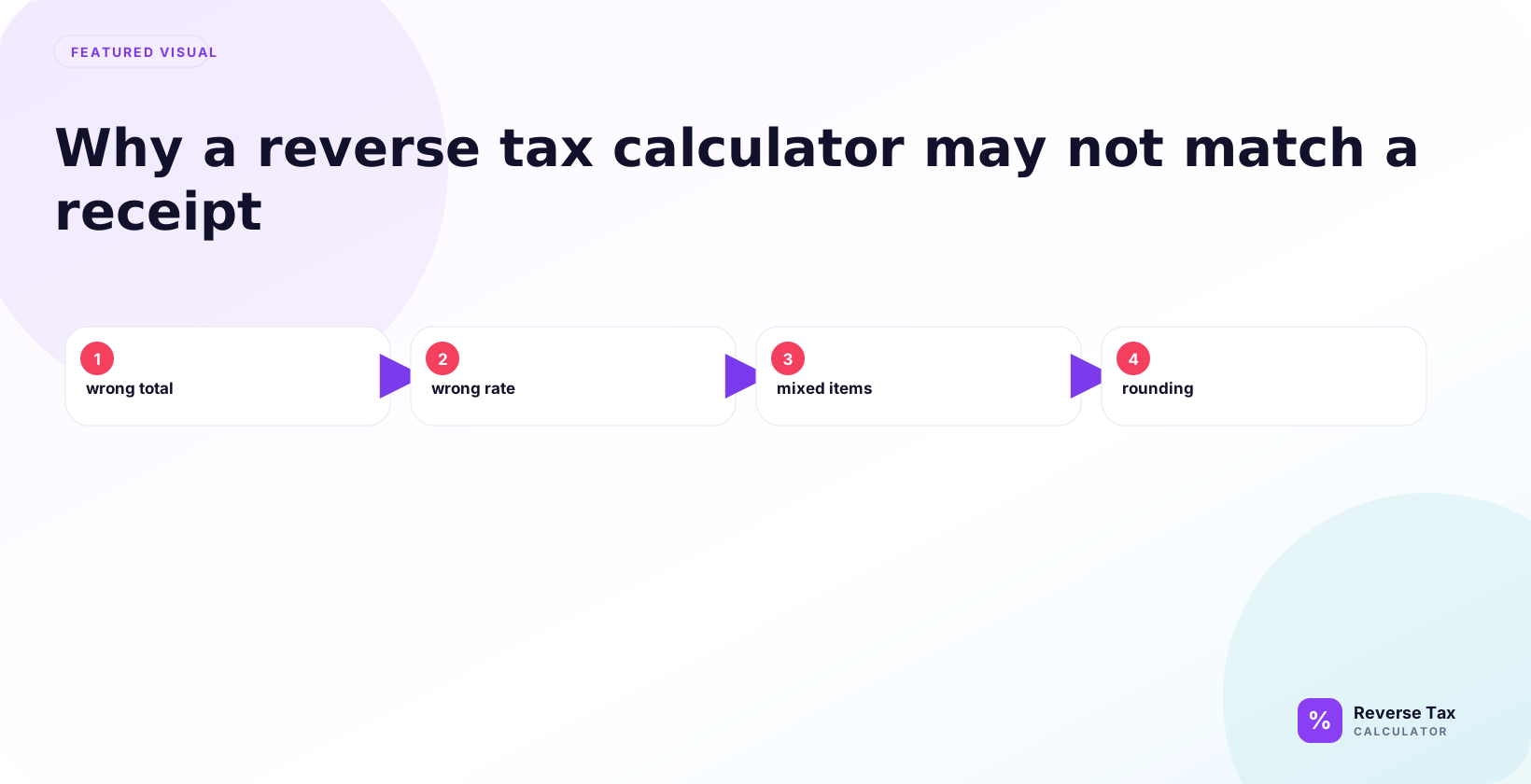
A reverse tax calculator may not match a receipt when the receipt total contains rounding, discounts, exempt items, shipping, multiple rates, or fees that were not taxed the same way. Reverse tax math works on one taxable base and one rate, so the expected output changes when the printed total mixes taxable and non-taxable lines. Matching the receipt means separating each taxable group, using the receipt’s rate, and allowing small cent differences from merchant rounding.
This page explains the most common mismatch causes, how to diagnose them in the right order, and when the calculator is wrong, the input is wrong, or the receipt needs item-level review.
Why Does the Calculator Not Match?
The calculator may not match because one of the assumptions does not match the receipt. Reverse tax assumes a tax-inclusive total, a correct rate, and one taxable base. Receipts often contain more detail than that.
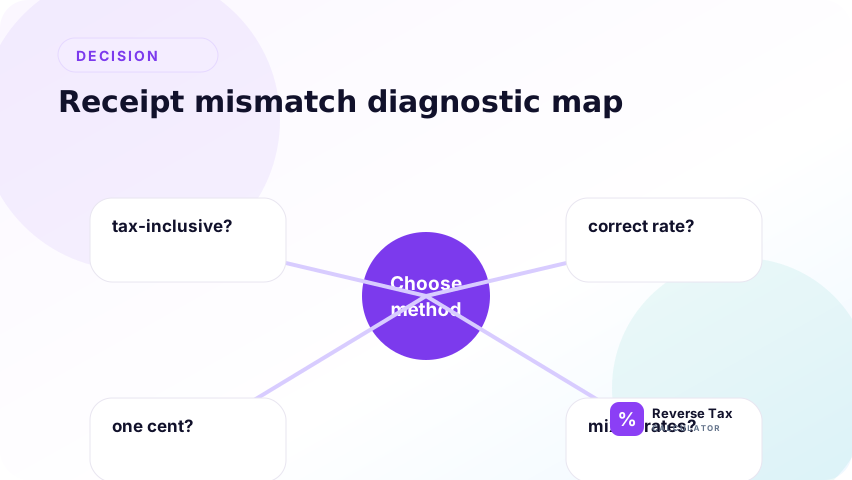
The mismatch is a signal. It does not automatically mean the calculator formula is wrong. It means the source total, rate, rounding method, or item grouping needs review.
Is the Total Actually Tax-Inclusive?
A reverse calculator works only when the total already includes tax. If the amount entered is a subtotal, quote, net price, or tax-exclusive price, the reverse result will be too low.
Check the receipt labels first. If the amount says subtotal or before tax, use a sales tax calculation instead. If it says total, amount paid, or tax included, reverse tax may be appropriate after removing non-tax payment items.
Did You Use the Correct Tax Rate?
A wrong rate is one of the most common mismatch causes. State-only rates may miss local tax, current rates may not match historical receipts, and GST-only rates may not match HST receipts.
If the receipt shows the tax amount, use that amount as evidence. If the rate must be inferred, compare the implied rate with the expected rate and review the wrong tax rate guide.
Is the Mismatch Only One Cent?
One-cent mismatches often come from rounding. The receipt may round by item, by tax group, or by invoice total. Your calculator or spreadsheet may round at a different step.
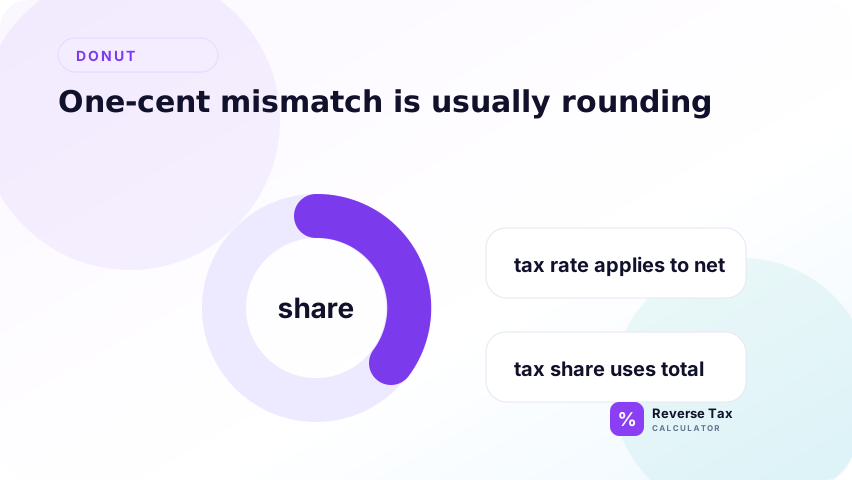
If the difference is one cent and all inputs are correct, document the rounding assumption. If the difference is larger, review rate, source total, and mixed items before blaming rounding.
This order matters because users often change the tax rate to force a perfect match. A one-cent difference should usually trigger a rounding review first. The one-cent difference guide explains that diagnostic path.
Does the Receipt Have Mixed Taxable and Exempt Items?
Mixed receipts break simple reverse tax because one grand total may include both taxed and untaxed items. A single rate cannot describe the whole receipt.
Split the receipt into taxable and exempt groups before calculating. The guide on mixed taxable and exempt items explains the item-group method.
This is one of the most common reasons a correct formula appears wrong. The calculator expects one taxable base. A mixed receipt gives it several bases hidden inside one customer payment total.
Does the Receipt Have Multiple Tax Rates?
Multiple tax rates create multiple taxable bases. Food, clothing, shipping, services, and general merchandise may not share the same rate. A single reverse formula for the entire total can mismatch even when every individual tax line is correct.
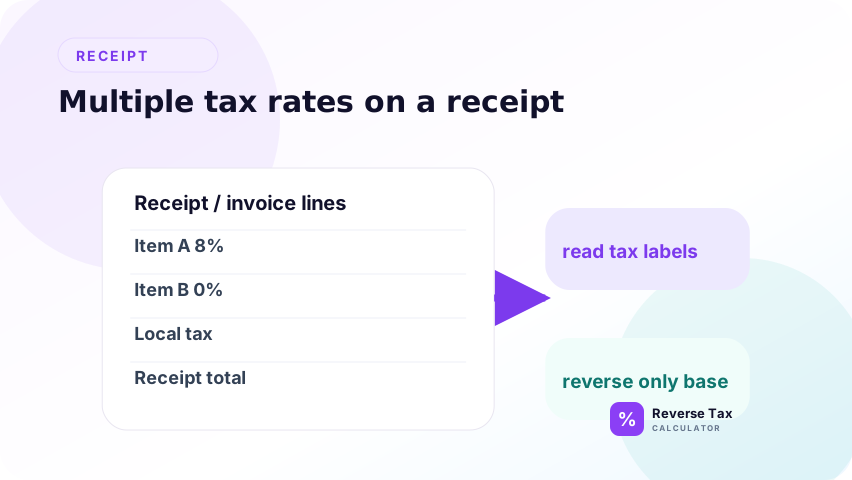
Use separate calculations for each rate group. Then add the group totals back together and compare the rebuilt receipt total.
Multiple rates can happen even when all items are taxable. For example, food, prepared meals, local district taxes, or shipping may be treated differently. The receipt structure should decide the groups, not the calculator.
Did Discounts or Coupons Change the Taxable Base?
Discounts can apply before tax or after tax. A pre-tax discount reduces the taxable base. A post-tax credit may not. If the calculator ignores the discount order, the result may not match the receipt.
Read the receipt sequence carefully. The discounts and coupons reverse tax page explains why coupon type and timing matter.
A discount before tax reduces the base that tax was calculated from. A post-tax credit may reduce the amount paid without changing the taxable base. Those two cases need different reverse workflows.
Did Shipping or Delivery Change the Calculation?
Shipping and delivery charges can be taxable, exempt, or partly taxable depending on the jurisdiction and transaction. If shipping is included in the entered total but not taxed the same way as the items, the calculator can mismatch.
Separate shipping before calculating unless the receipt clearly shows that shipping is part of the same taxable base.
Shipping is especially risky because it can be shown as a line item, delivery fee, handling fee, or marketplace charge. If the shipping line has its own tax treatment, it should not be forced into the item tax calculation.
Did Tips or Service Charges Change the Total?
Optional tips are often added after tax and should not be reversed as part of the taxable amount. Mandatory service charges can be different depending on the receipt and jurisdiction.
If the card charge includes a tip, do not automatically enter the card charge as the tax-inclusive total. Use the taxable receipt total instead.
This is common with restaurant receipts. The printed receipt may show a meal total with tax, while the card charge later includes a tip. Reverse tax should start from the taxable meal amount, not the final card settlement if the tip was added after tax.
Did You Use a Payout Instead of a Receipt Total?
Marketplace and payment processor payouts may include fees, refunds, chargebacks, reserves, and adjustments. Those amounts are not always clean tax-inclusive sales totals.
Trace payout rows back to the order or receipt before reverse tax. A payout amount may be useful for reconciliation, but it is often not the correct formula input.
This issue appears in ecommerce and marketplace reports. A payout can be net of platform fees, payment fees, refunds, or reserves. Reverse tax needs the tax-inclusive sales amount, not necessarily the deposited amount.
Receipt Mismatch Decision Table
| Symptom | Likely cause | First check |
|---|---|---|
| One-cent difference | Rounding | Line vs total rounding |
| Larger difference | Wrong rate or source total | Rate and receipt labels |
| State rate almost works | Local rate missing | Combined local rate |
| Total includes tip | Non-tax payment item | Remove tip first |
| Mixed items | Multiple tax bases | Split item groups |
| Payout total fails | Fees or adjustments | Use source order |
This table gives a diagnostic order before changing formulas.
What Should You Check Before Blaming the Calculator?
Check the source amount first. Many mismatches happen because the number entered is not the same number the receipt used to calculate tax. A card charge can include a tip. A marketplace payout can remove fees. An invoice total can include shipping, deposits, or exempt lines. If the input total is different from the taxable base, the calculator will not match the printed tax line.
Check the rate second. A state, province, VAT, GST, HST, PST, or QST label does not always tell the full combined rate. Local add-ons, reduced rates, zero-rated items, and tax holidays can make the printed receipt use a rate that differs from the one a user enters. The calculator can only reverse the rate it is given.
Check rounding third. Some systems calculate tax per line item, some per tax group, and some on the invoice total. These methods can all be valid, but they can produce one-cent differences. A one-cent difference is normally a rounding clue, while a larger difference usually points to rate, base, or mixed-item problems.
How Do Mixed Items Create a Larger Mismatch?
Mixed items create a larger mismatch because one receipt total may contain taxable, exempt, reduced-rate, and fully taxed lines. If a user applies one rate to the entire total, the formula assumes every item belongs to the same tax base. That assumption fails when groceries, clothing, shipping, services, discounts, or exempt products are treated differently.
The correct method is to split the receipt into tax groups. Reverse each taxable group with its own rate, keep exempt lines separate, then rebuild the receipt by adding each pre-tax group, each tax amount, and any non-tax lines. If the rebuilt total matches, the mismatch was caused by grouping rather than the calculator.
How Do Discounts Change Reverse Tax Results?
Discounts change reverse tax results when the receipt applies the discount before tax, after tax, or only to selected items. A pre-tax discount reduces the taxable base before the tax is calculated. A post-tax discount changes the final payment amount but may not change the tax line in the same way. A category discount may affect only part of the receipt.
When a receipt has discounts, do not reverse the card payment total without checking where the discount was applied. Use the amount that the tax engine used as the taxable base. If that amount is not visible, the receipt may need item-level reconstruction before a reverse tax calculator can match it.
How Should a Business Document an Accepted Difference?
A business should document the source total, entered rate, calculated net amount, calculated tax amount, receipt tax line, and variance. If the difference is one cent and caused by rounding, note whether the receipt used line-level, group-level, or total-level rounding. If the difference is larger, note the corrected input or the reason the receipt cannot be matched cleanly.
This documentation matters because a mismatch is not just a math issue. It can affect revenue separation, tax liability, refunds, reconciliation, and audit trails. Keeping the calculation note beside the receipt or invoice makes it clear why a number was accepted, adjusted, or excluded from a report.
How to Check the Calculator Against a Receipt
Rebuild the receipt. Calculate the before-tax amount, calculate the tax amount, add them together, and compare with the source total. If the receipt has groups, rebuild each group first.
Do not force a match by changing the rate without evidence. Rate guessing can hide the real problem and create worse errors in bookkeeping or refunds.
The best check is a rebuild. If calculated pre-tax amount plus calculated tax amount equals the source tax-inclusive total, the math is internally consistent. If it does not, audit source amount, rate, item grouping, and rounding in that order.
What This Page Does Not Prove
This page diagnoses mismatch causes. It does not prove which tax rate legally applies, whether an item is taxable, or whether the receipt was prepared correctly.
Use the original receipt, official tax authority guidance, and accounting records for compliance-sensitive decisions.
It also does not prove that the seller calculated the receipt correctly. The page helps identify likely mismatch causes. It does not replace an audit of the POS system, invoice setup, tax engine, or jurisdiction-specific tax rules.
Trust Boundary
A mismatch is a review signal, not a final conclusion. The calculator may be right and the inputs may be wrong, or the receipt may require item-level handling.
For business use, document the reason for any accepted variance, especially when the result supports refund, bookkeeping, or audit work.
If the mismatch affects reporting or refund decisions, preserve the original receipt and the calculation notes. A calculator result without source evidence should not be treated as final proof.
Frequently Asked Questions
Why is my reverse tax calculator off by one cent?
The most common reason is rounding. The receipt may round by line item or tax group while the calculator rounds at the total.
Why is my reverse tax result very different?
Large differences usually mean the rate, source total, item grouping, or price type is wrong. Check whether the total includes tips, shipping, exempt items, or multiple rates.
Should I change the tax rate until it matches?
No. Change the rate only when you have evidence. First check receipt labels, rounding, mixed items, local rates, and transaction date.
Sources and Notes
- IRS Publication 583 recordkeeping guidance
- Formula source: arithmetic relationship between source total, tax rate, item grouping, rounding, and rebuilt total.